Set up auto-forwarding in Outlook
One Outlook rule forwards your bank alerts and receipts to Graiden as they arrive. You choose exactly which emails it catches; everything else stays put.
Not on Outlook? Pick your email provider

The quick way
Watch the 30-second demo, then open guided setup in the Graiden app. It gives you direct links to the right settings pages and ticks each step off as soon as it works, so you always know where you are.
Prefer to read? The steps are below, with what each screen looks like.
Step 1
Open Outlook's rules
Copy your Graiden address from the Graiden app first (Settings, under your forwarding address). Then in Outlook on the web, click the gear, open Mail → Rules and click Add new rule. Open Rules directly
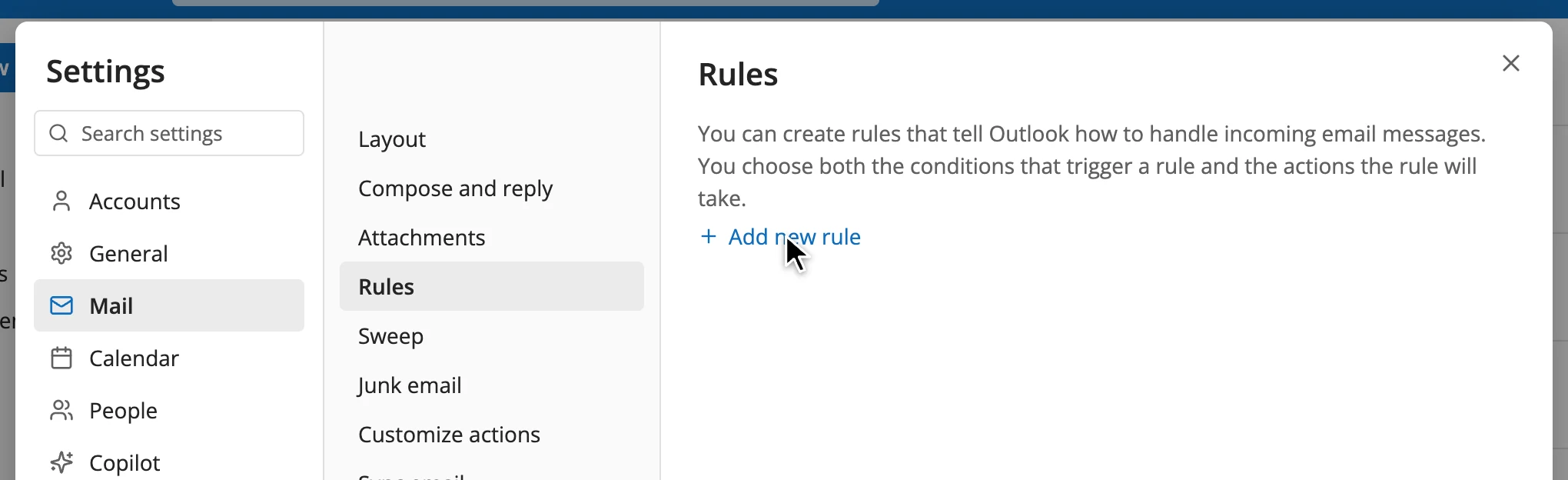
Settings → Mail → Rules → Add new rule Step 2
Forward your bank's alerts
Name the rule (Graiden works), set the condition to From and paste your banks' alert addresses. Set the action to Forward to your Graiden address, then Save.
Your banks
Paste these into the rule's From box:
Pick a bank above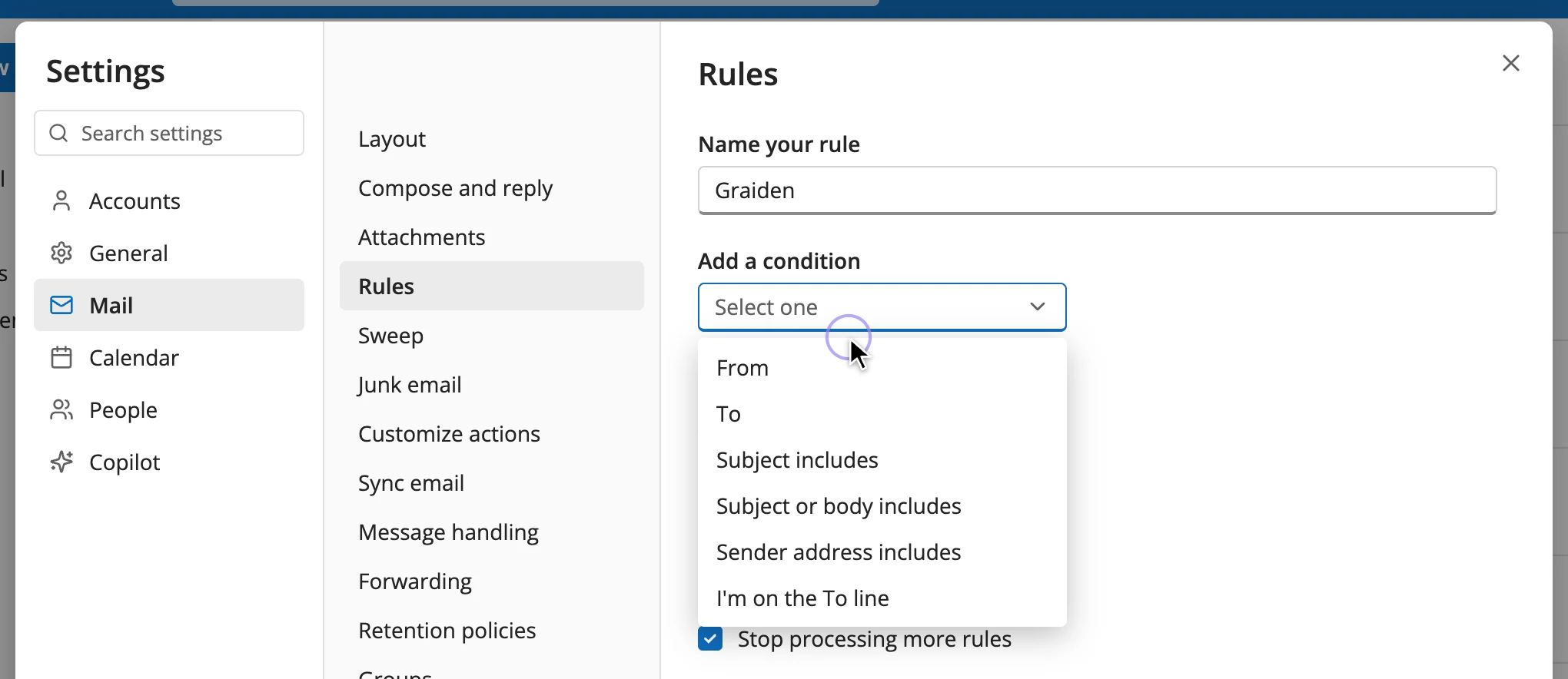
Add a condition → From 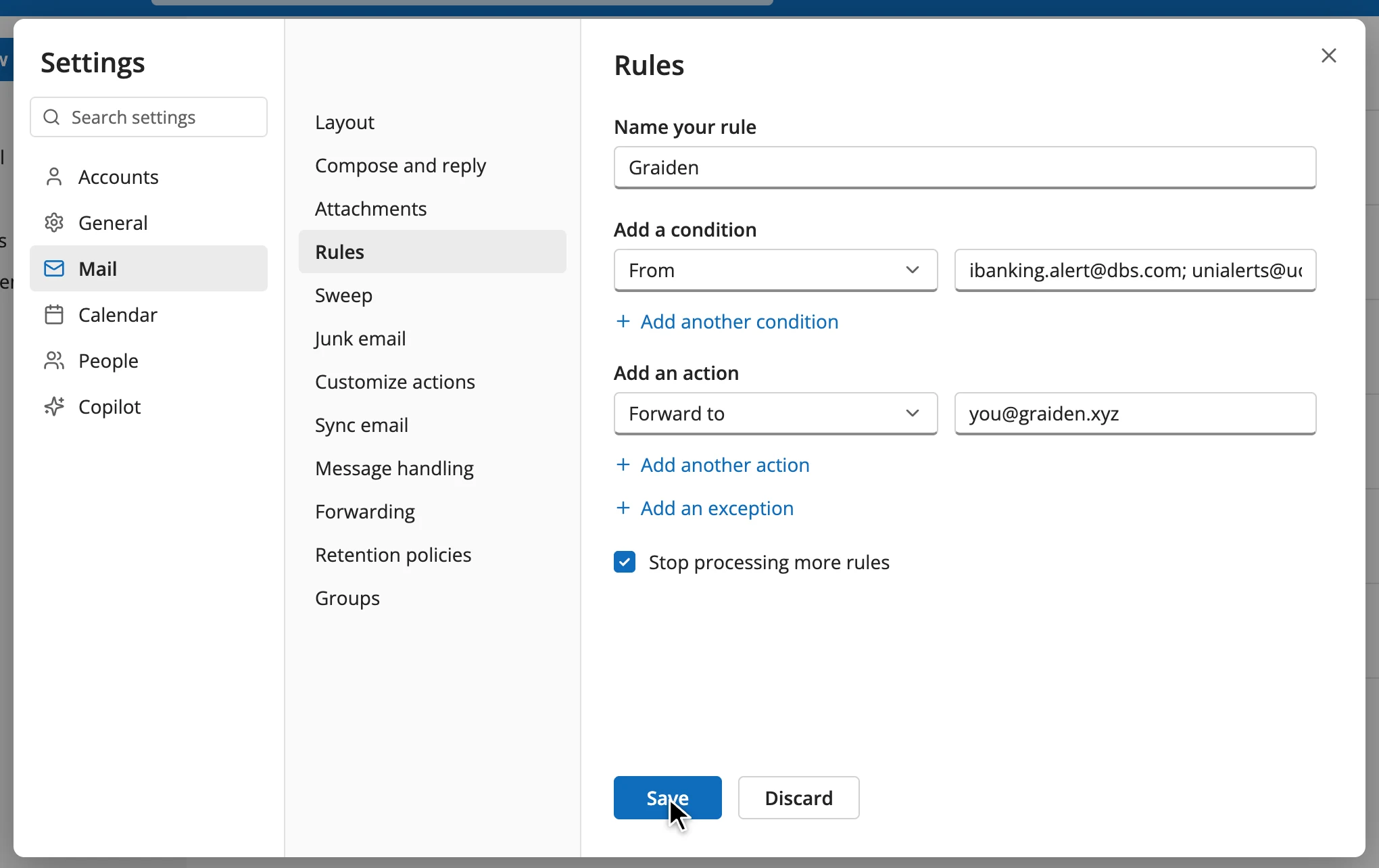
From your banks → Forward to your Graiden address → Save Receipts too?
Add a second rule with the condition Subject includes and words like receipt, invoice or order confirmation, forwarding to the same address.Work or school account?
Some organisations block forwarding to outside addresses. If Outlook says forwarding is blocked, ask your IT admin, or forward from a personal account instead.Step 3
Check it works
The next alert from your bank lands in Graiden on its own. Guided setup in the Graiden app ticks this step off the moment your first email arrives. Want to see it now? Forward one old alert to your Graiden address.
Stuck? Email support@graiden.xyz and we'll help you finish.